





Most home offices were assembled by accident
A desk that fit the room. A chair that was on sale. A laptop positioned wherever it ended up after being pulled out of the bag. Nobody deliberately designed the workspace — it just accumulated, piece by piece, without any thought for how the body would hold up through a full day in it.
The result, for most people, is a setup that works well enough to be functional but causes just enough daily discomfort to become background noise. You stop noticing the neck stiffness because it's always there. The lower back ache gets written off as just how you feel after work.
This guide walks through every element of a home office from the ground up with specific, actionable guidance for each one. Most of it is free. Where gear is involved, I'll flag it.
One rule before we start: work from the bottom up. Chair first. Desk height second. Monitor position third. Keyboard and mouse last. Each layer depends on the one below it. Adjusting your monitor without first getting your chair right is compensating for a problem at the wrong level.
Step 1 — Chair and seating position
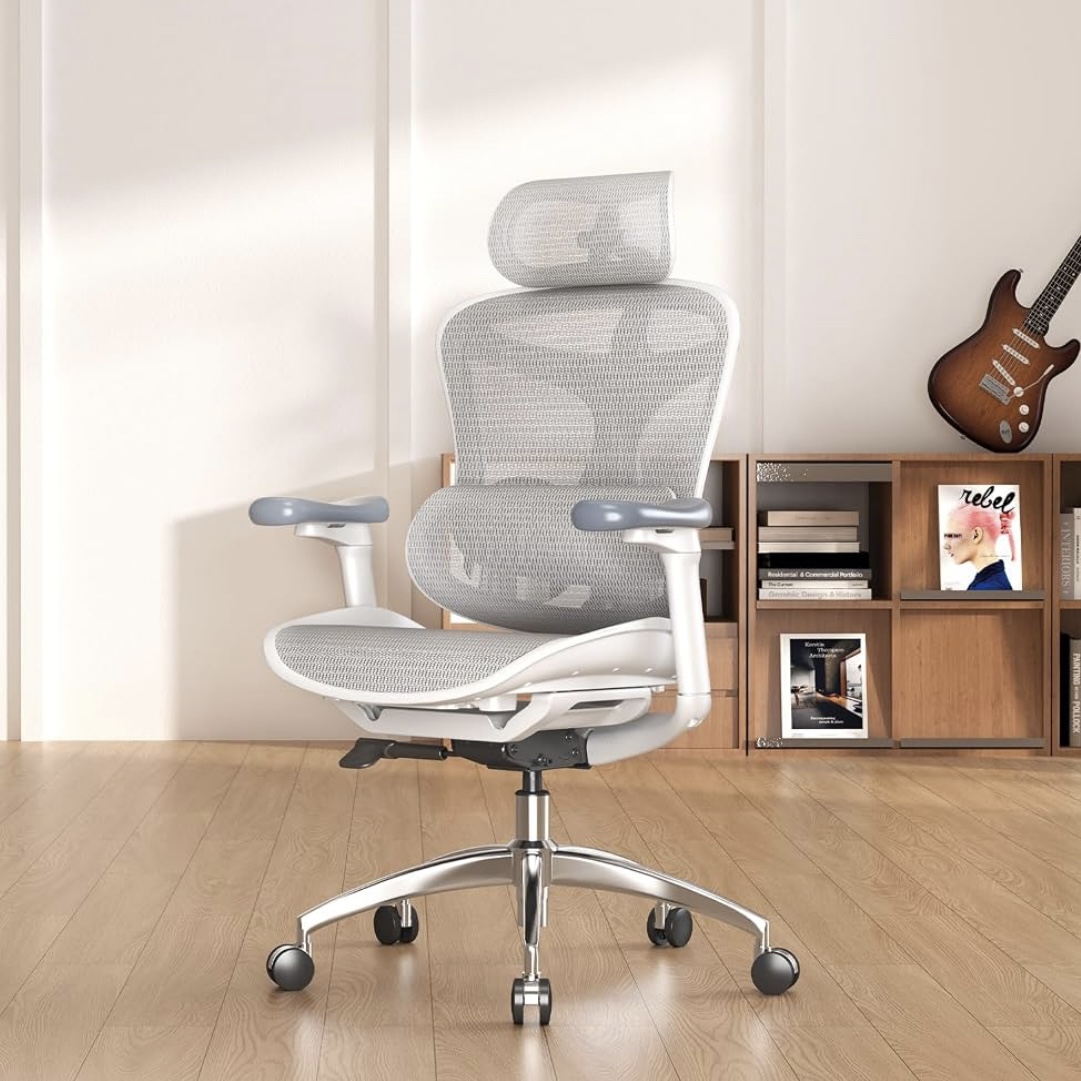
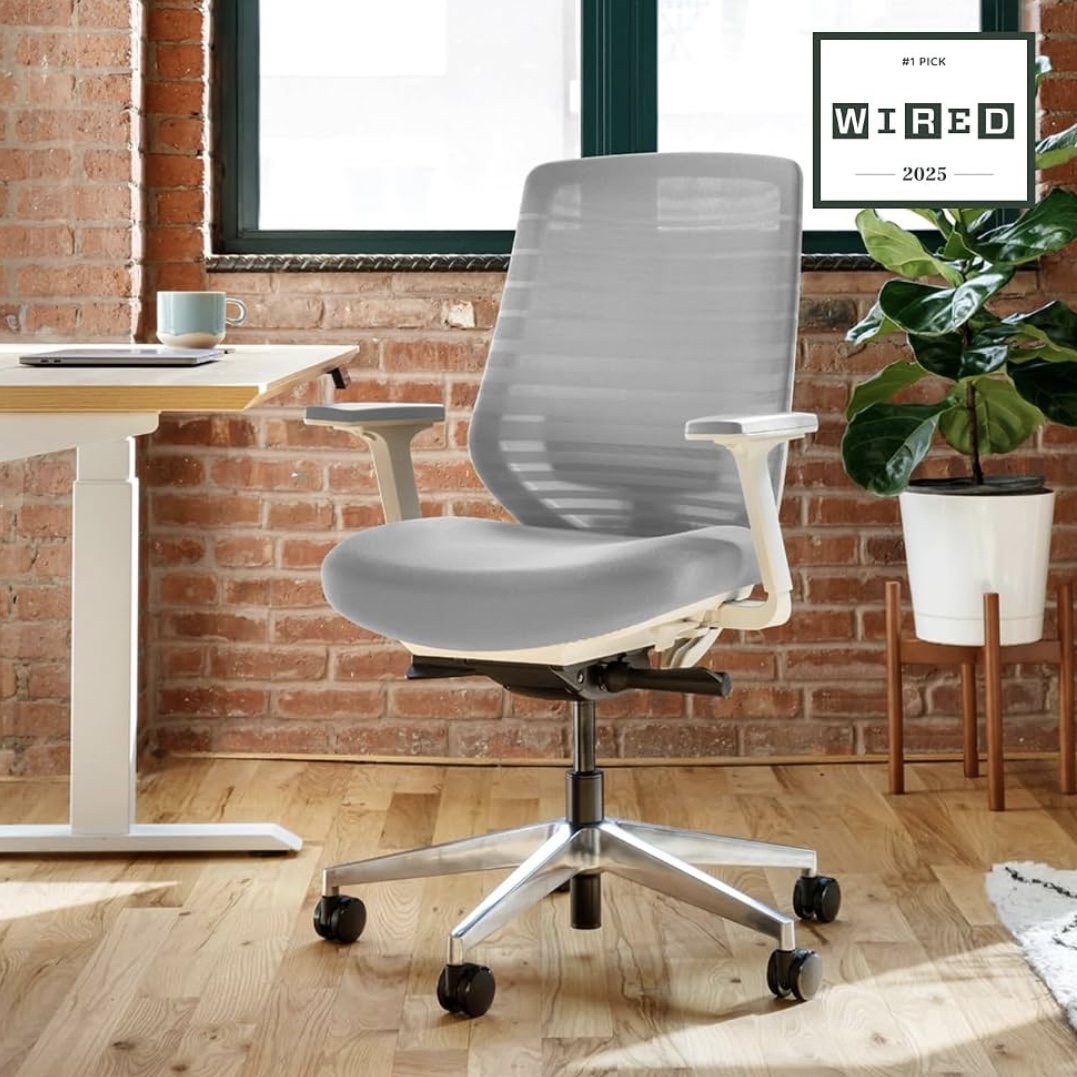
Your chair is the foundation. Everything else is calibrated around it. If it's wrong, everything above it is compensating.
Seat height
Adjust until your feet are flat on the floor and your knees are at roughly 90 degrees. Thighs roughly parallel to the floor or angled slightly downward. If your feet don't reach the floor at the correct seat height, use a footrest — don't lower the chair and lose your lumbar support position.
Lumbar support
Your lower back has a natural inward curve. Your chair should support it, not let it flatten against the backrest. Position the lumbar support so it fills the gap between your lower back and the chair — consistent, gentle contact. If you feel pressure, it's too aggressive. If your lower back is rounding outward into the chair, it's not doing its job.
Seat depth
Two to three finger widths of clearance between the front seat edge and the backs of your knees. A seat that's too deep compresses the back of your legs and restricts circulation. Over a long day this shows up as that heavy, dull fatigue in the lower legs that people attribute to sitting too much.
Armrests
Set them so your shoulders are relaxed — not raised, not dropped — and your elbows land at roughly 90 degrees. Armrests too high mean your shoulders are shrugging all day. Too low and they're irrelevant. If yours can't be positioned correctly, drop them out of the way entirely rather than leaving them at a height that forces compensating posture.
Not happy with what your current chair can do? Our ergonomic chair guide covers the best options at every budget.
Step 2 — Desk height
Standard desk height is around 73-75cm (28-30 inches), designed for the average body, which means it fits most people imperfectly.
The test: sit in your correctly adjusted chair and let your arms hang naturally from your shoulders. Your elbows should be at roughly desk height. If the desk is higher, your shoulders will elevate all day — a reliable path to upper back tension. If it's lower, you'll round forward.
Fixed desk too high? Raise your chair and add a footrest. Too low? Desk risers can add a few inches. A height-adjustable desk solves it permanently and is worth the investment eventually, but it's not where I'd tell you to spend money first.
Step 3 — Monitor position
This is where most home office setups go wrong. It's also where fixing things has the fastest and most noticeable impact on neck and upper back pain.
Height
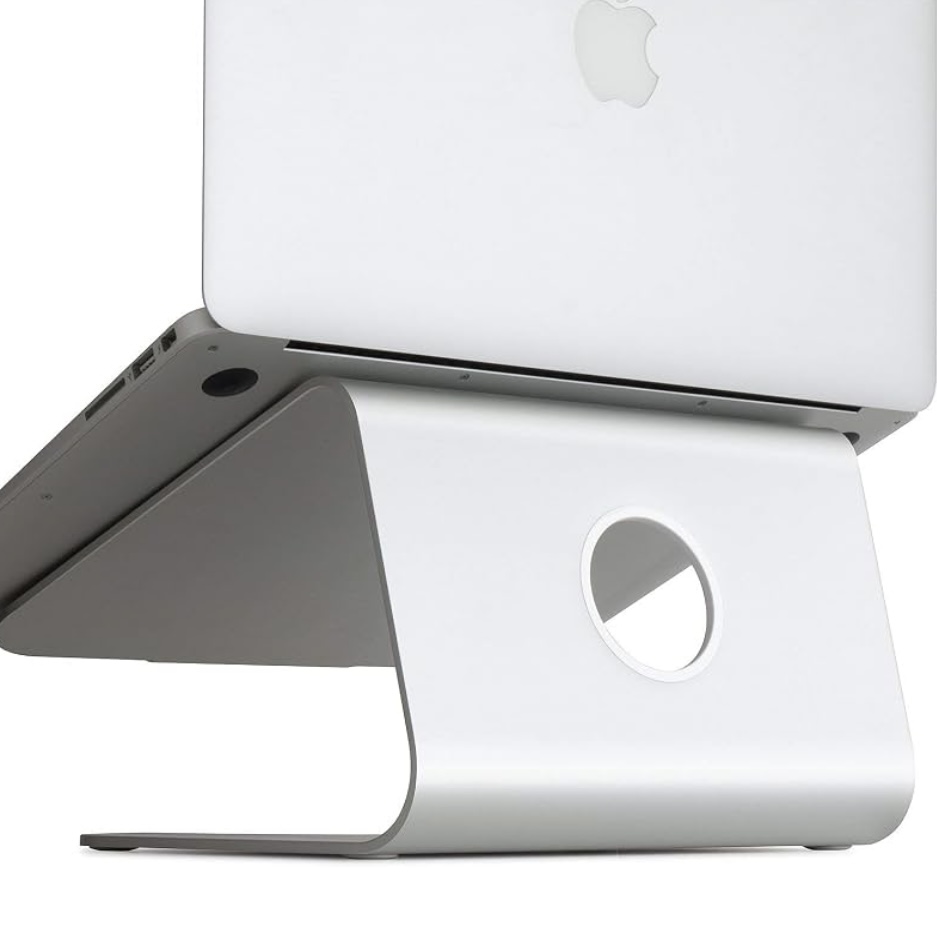
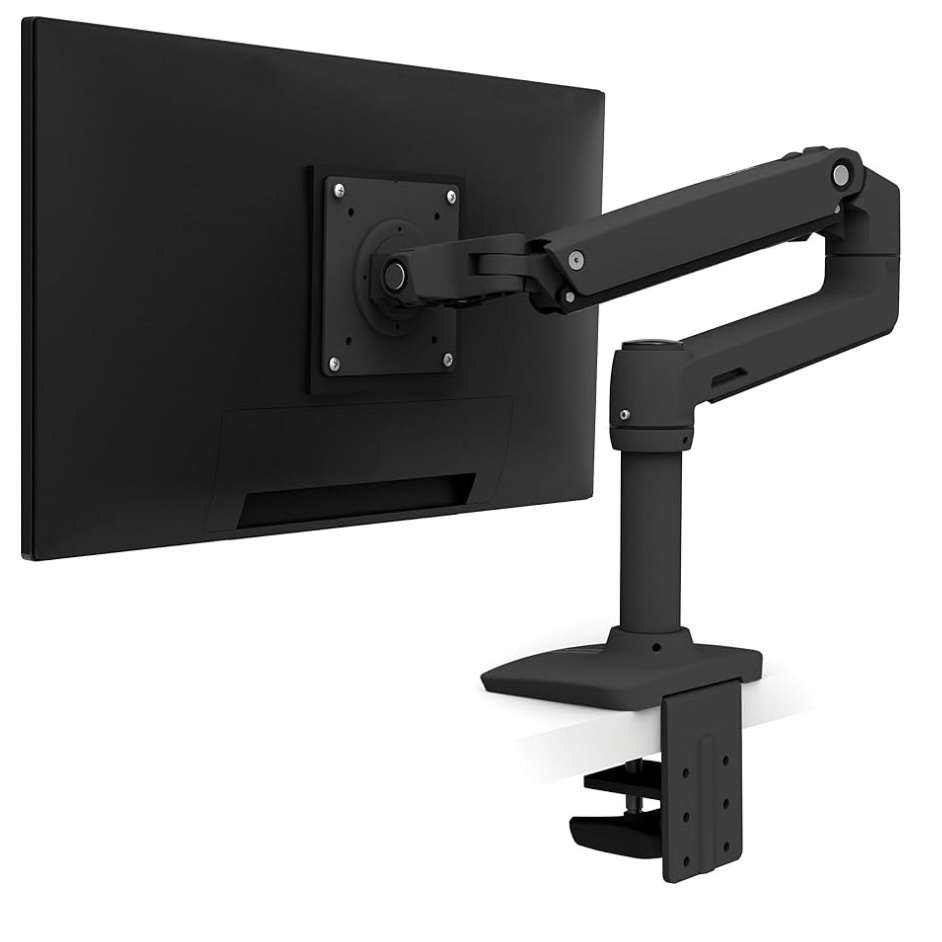
Top of the monitor at or just below eye level when sitting in correct posture. Most monitors on standard stands are 4 to 6 inches too low. Raise yours with books, a monitor riser, or ideally a monitor arm that lets you dial in height and angle precisely. If you use a laptop, the screen and keyboard height are coupled — use a laptop stand and external keyboard to decouple them.
Distance
Roughly arm's length — approximately 50 to 70cm (20 to 28 inches). You should be able to read text without leaning forward. If you're leaning in, increase the font size rather than moving the screen closer.
Tilt
Tilt the monitor back 10 to 20 degrees so the screen faces slightly upward toward your eyes. This reduces the tendency to angle your head down to see the bottom of the screen — a subtle but persistent source of neck strain over long sessions that most people never think to address.
Step 4 — Keyboard and mouse
Keyboard
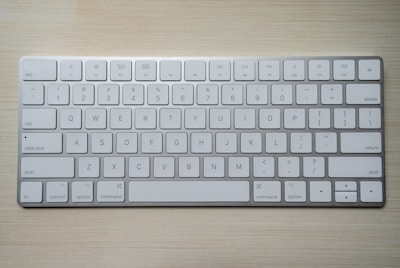
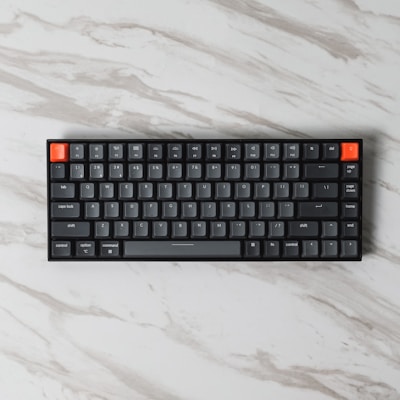
Position so your elbows are at approximately 90 degrees and your wrists are in a neutral position — neither angled upward nor drooping downward — when you type. Close enough that you're not reaching forward to get to it.
One specific thing: don't use the fold-out feet on the back of your keyboard. They raise the back edge and tip your wrists upward during typing. Keep the keyboard flat or very slightly angled away from you. It feels counterintuitive if you've always used the feet, but it's significantly better for your wrists over long sessions.
Mouse
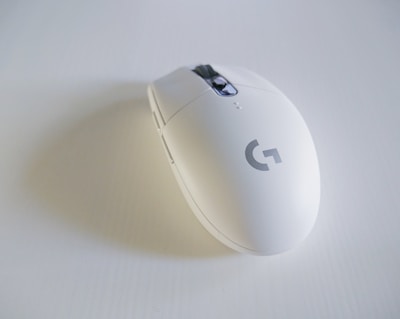
As close to the keyboard as possible. Reaching sideways to a mouse that's too far away creates sustained outward rotation at the shoulder and loads the rotator cuff over time. It's a common and underdiagnosed source of shoulder pain in desk workers. Keep the elbow in.
Step 5 — Lighting
The most overlooked element in home office ergonomics, and a consistent source of the low-grade fatigue and end-of-day headaches that are hard to trace to a cause.
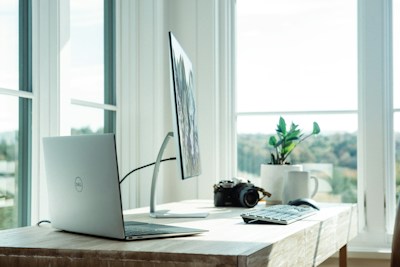
- Eliminate screen glare. Position your monitor so windows are to the side — not behind you where they reflect off the screen, and not in front of you where they create contrast your eyes constantly adjust for. Blinds and curtains are legitimately ergonomic tools.
- Match screen brightness to the room. A bright monitor in a dim room is one of the fastest routes to eye strain. In a bright room, a dim screen makes you squint. Adjust throughout the day as lighting changes.
- Use a task light if needed. A desk lamp that illuminates your work surface without glaring on the screen reduces the contrast ratio your eyes are managing between your document and your display. Less contrast work equals less fatigue over time.
Step 6 — Movement throughout the day
Even a perfectly configured ergonomic workspace can't fully offset staying completely still for eight hours. The body needs movement to maintain spinal disc health, circulation through the lower body, and the muscle activation that prevents the deactivation patterns that cause most of the pain we've covered.
A brief movement break every 30 to 60 minutes is the standard recommendation. It doesn't have to be structured — standing to take a call, walking to get water, a few shoulder rolls. The goal is disrupting the static posture pattern, not achieving a fitness outcome.
Quick reference checklist
Run through this right now
- Feet flat on the floor, knees at roughly 90 degrees
- Lower back supported, natural inward curve maintained
- Shoulders relaxed, elbows at approximately 90 degrees
- Wrists flat and neutral when typing
- Top of monitor at or just below eye level
- Monitor at roughly arm's length, tilted back slightly
- No glare on screen — window to the side, not behind
- Screen brightness matched to room brightness
- Movement break every 30 to 60 minutes
If your current chair or monitor setup can't meet these criteria without gear changes, our resources page covers what to buy and in what order — always starting with the highest-impact upgrades first.